GoHighLevel sub-accounts are separate workspaces that let you provide services to each of your clients.
There’s a lot you can do to make sub-account management easier, including the eight ways I’ve uncovered below.
Key Takeaways:
- Snapshots save time by preloading assets for new client sub-accounts
- User permissions protect data yet enable team collaboration
- Sub-accounts can be paused, transferred, or converted to SaaS
What Is a GoHighLevel Sub-Account?
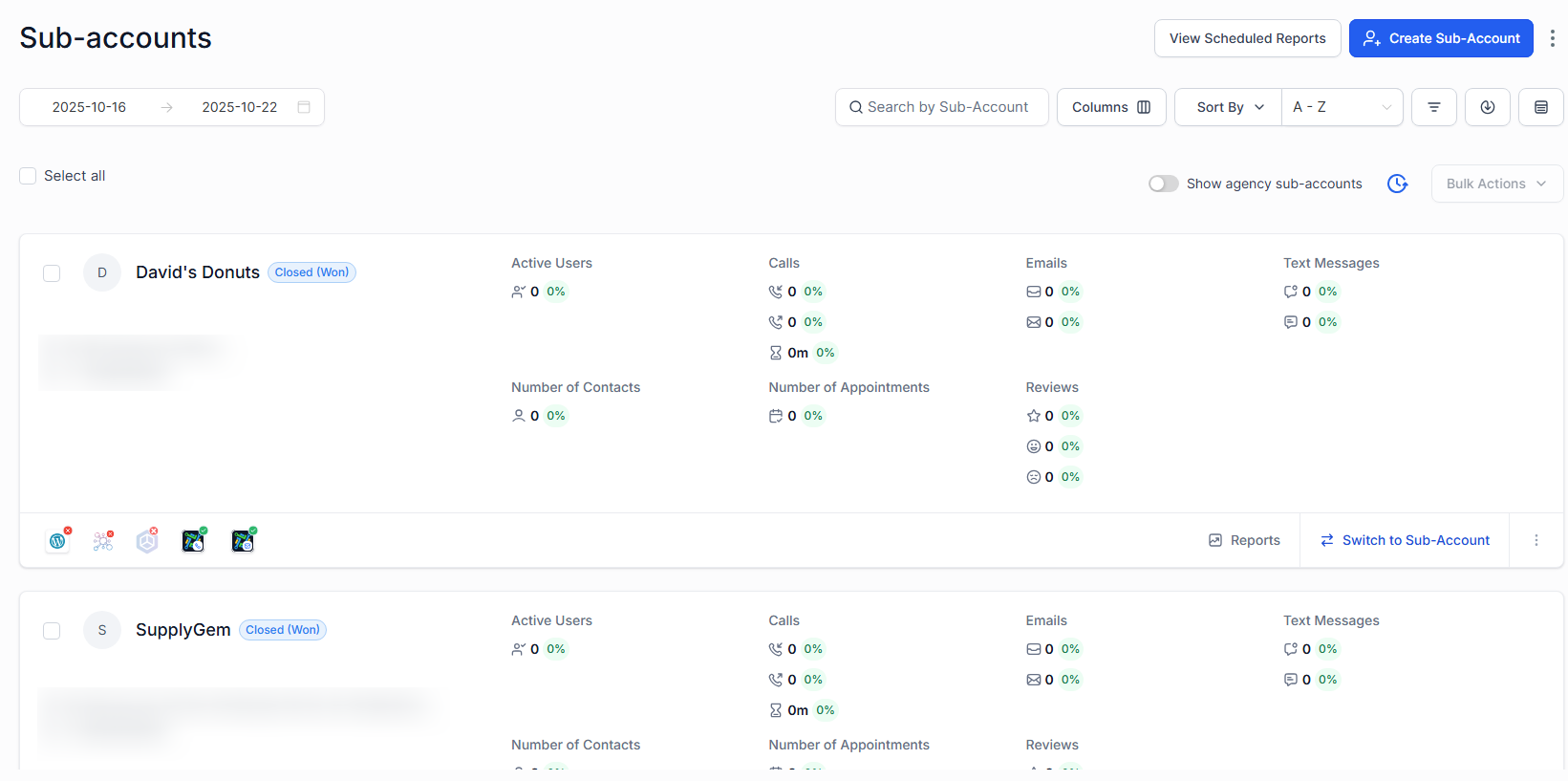
A GoHighLevel sub-account is essentially a separate workspace within your main GoHighLevel account.
So, if you run an agency, you would use a sub-account for each of your clients’ businesses.
This keeps everything organized and customized to each specific client. Plus, it prevents client data and assets from getting mixed up with others.
GoHighLevel Agency Account vs. Sub-Account
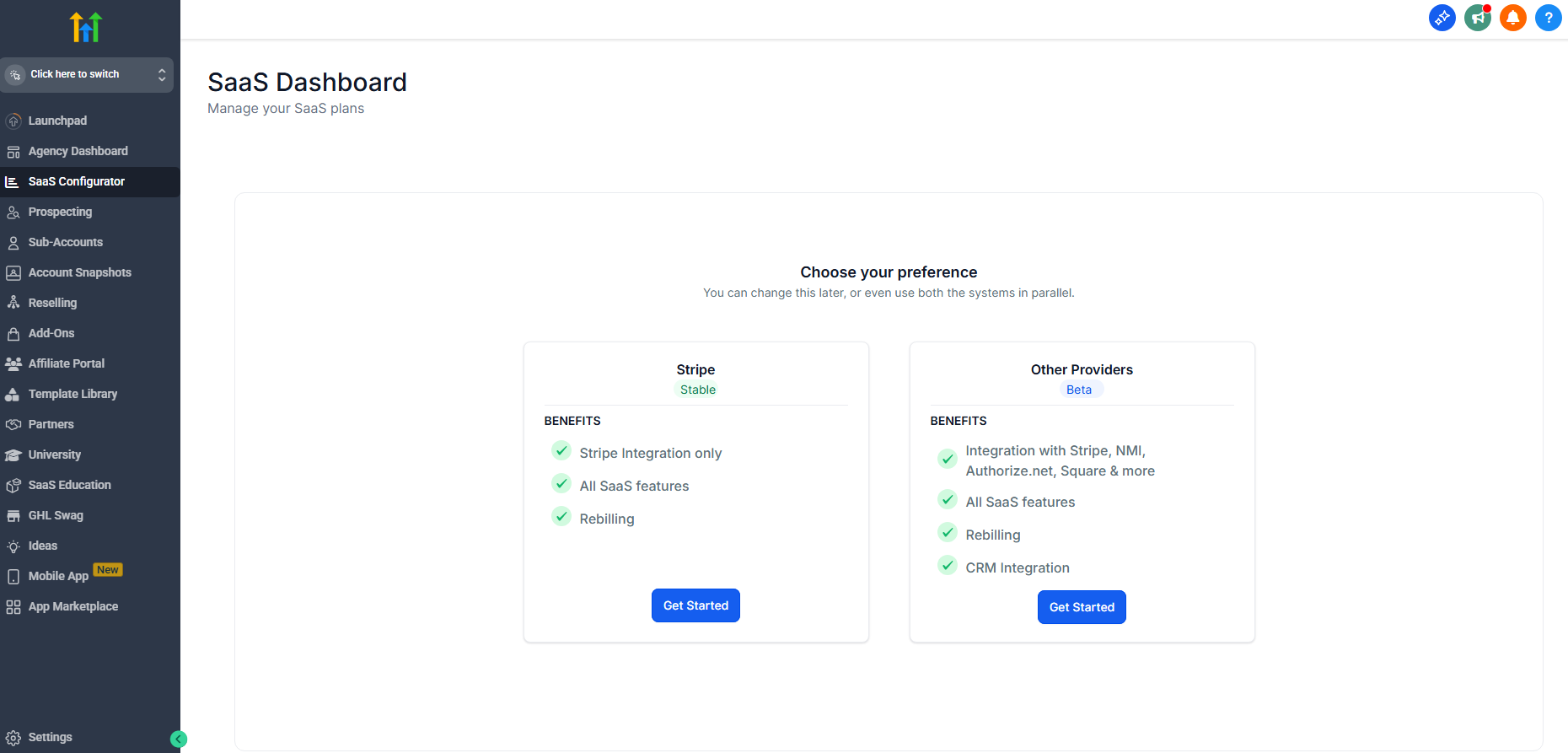
There’s often confusion between the agency account and the sub-account. As the account holder, you get one agency account that you alone have access to (unless you assign other agency admin users).
It’s the top-level admin dashboard that lets you define account settings, manage back-end features like payment processors and white-label settings, and use tools to run your business.
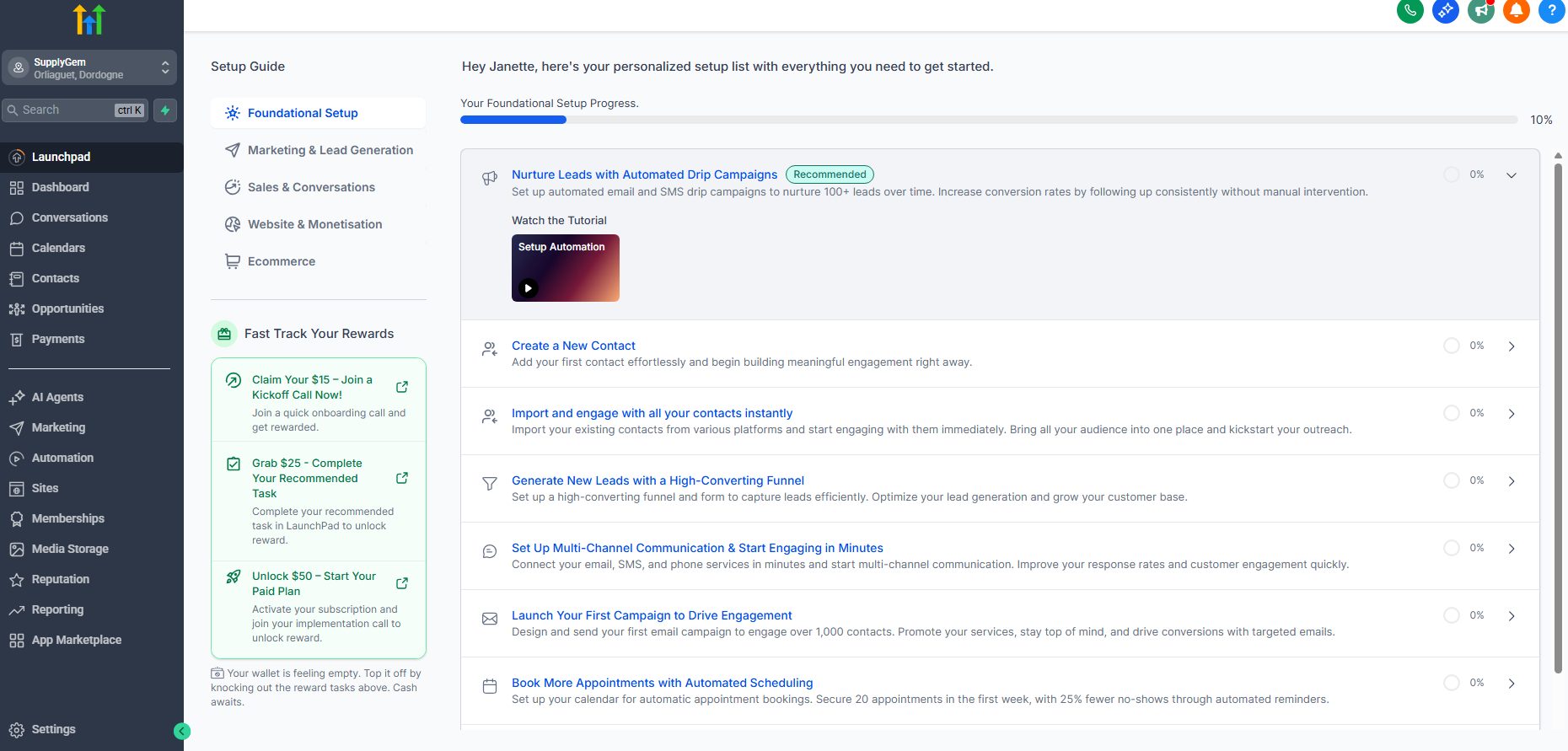
The sub-account is where you actually create things (funnels, pipelines, automations, etc.) and where the operations for each client (or your own business) take place.
And, of course, you can have as many sub-accounts as you need, whereas you will only ever have one agency account.
To make it a little clearer, here’s a rundown of what each account type includes:
| Agency Account | Sub-Account |
|---|---|
| Team and business information | Contacts |
| Create sub-accounts | Conversations hub |
| Account billing and client billing | Calendars |
| Reselling and rebilling | Opportunities and pipelines |
| SaaS configurator | Sales and payments |
| Snapshots and templates | AI agents |
| Prospecting | Marketing |
| Affiliate portal | Automation |
| Account add-on services | Sites and funnels |
| App marketplace | Memberships |
| Phone and email services | Reputation management |
| API keys | Reporting and analytics |
| Compliance and audit logs | Media storage |
GoHighLevel Sub-Account vs. SaaS Sub-Account
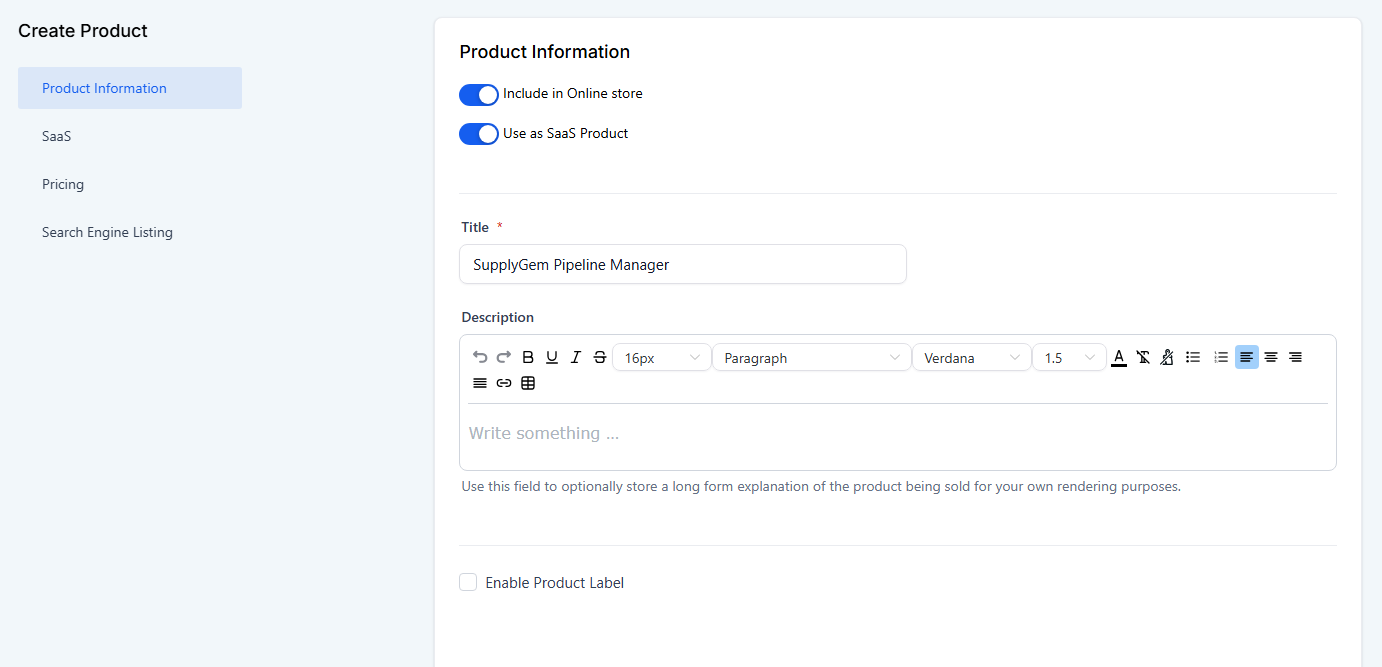
It’s also important to define the differences between a standard sub-account and a SaaS sub-account because although in principle they are the same thing, they actually behave very differently.
In short:
- A standard sub-account is where you manually set up each client and perform client management and services.
- A SaaS sub-account is out-of-the-box software with pre-defined features, and customers handle setup and account management themselves.
Here’s more detail on how they differ:
| Function or Feature | Standard Sub-Account | SaaS Sub-Account |
|---|---|---|
| Created | Manually by the agency from within the agency account | Automatically by GoHighLevel when a user signs up via your SaaS sales page |
| Billing method | The agency typically bills the client manually | Client automatically charged according to your SaaS pricing tiers |
| Ownership | Managed by the agency, although the client may have limited access | Owned by the client—they pay for and manage their own plan and account via your SaaS setup |
| Features/services | Whatever the agency provides as part of their service package | The features defined within the SaaS pricing tiers |
| Branding | White-labeled dashboard if agency branding is active | White-labeled SaaS platform, looks and feels like an independent software product |
| Snapshot deployment | Manually assigned by the agency after creation | Automatically deployed during signup based on the SaaS pricing tier selected |
How to Set Up a GoHighLevel Agency Sub-Account (Quick Guide)
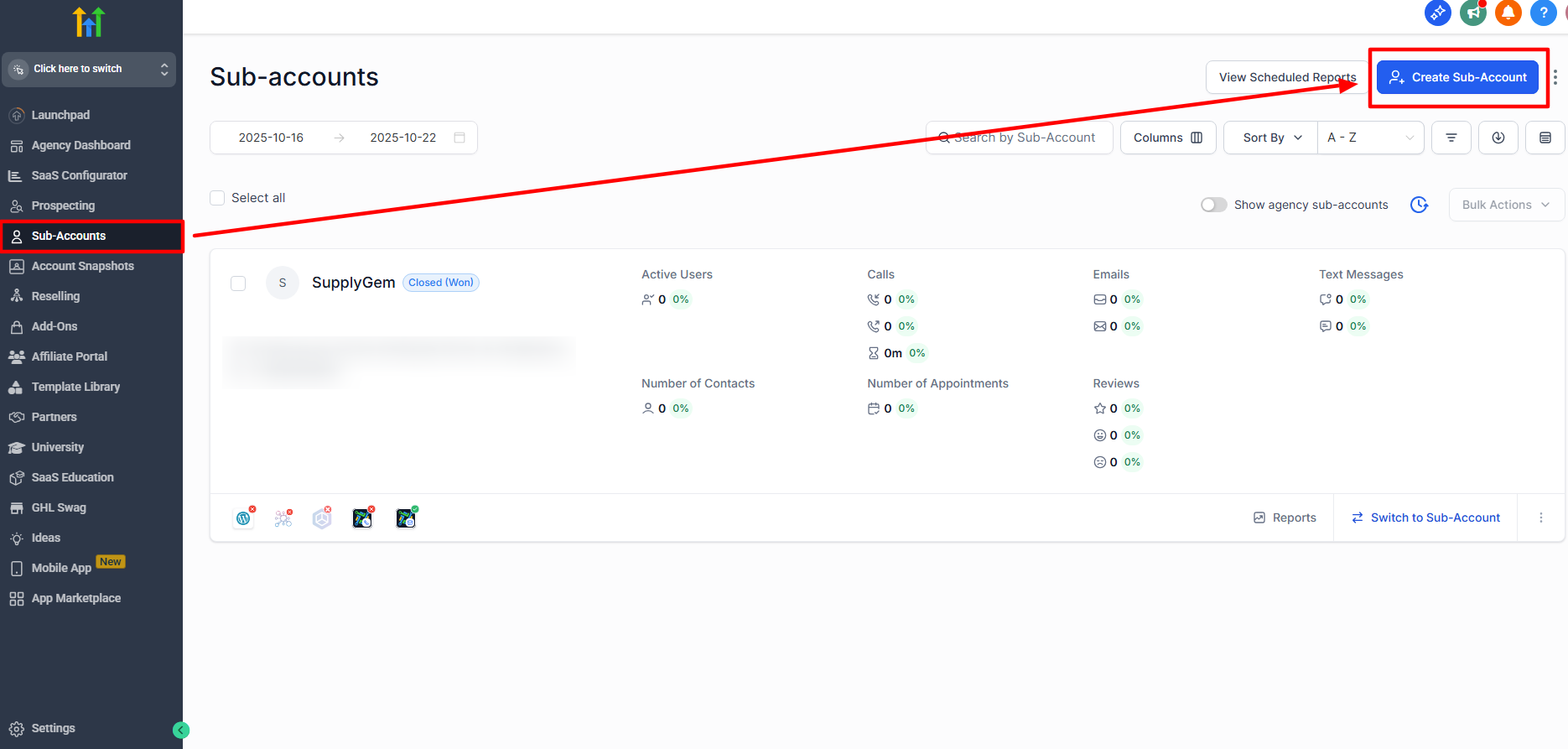
Make sure you’re within your agency account, then select Sub-Accounts from the menu. Click Create Sub-Account (in the top-right corner).
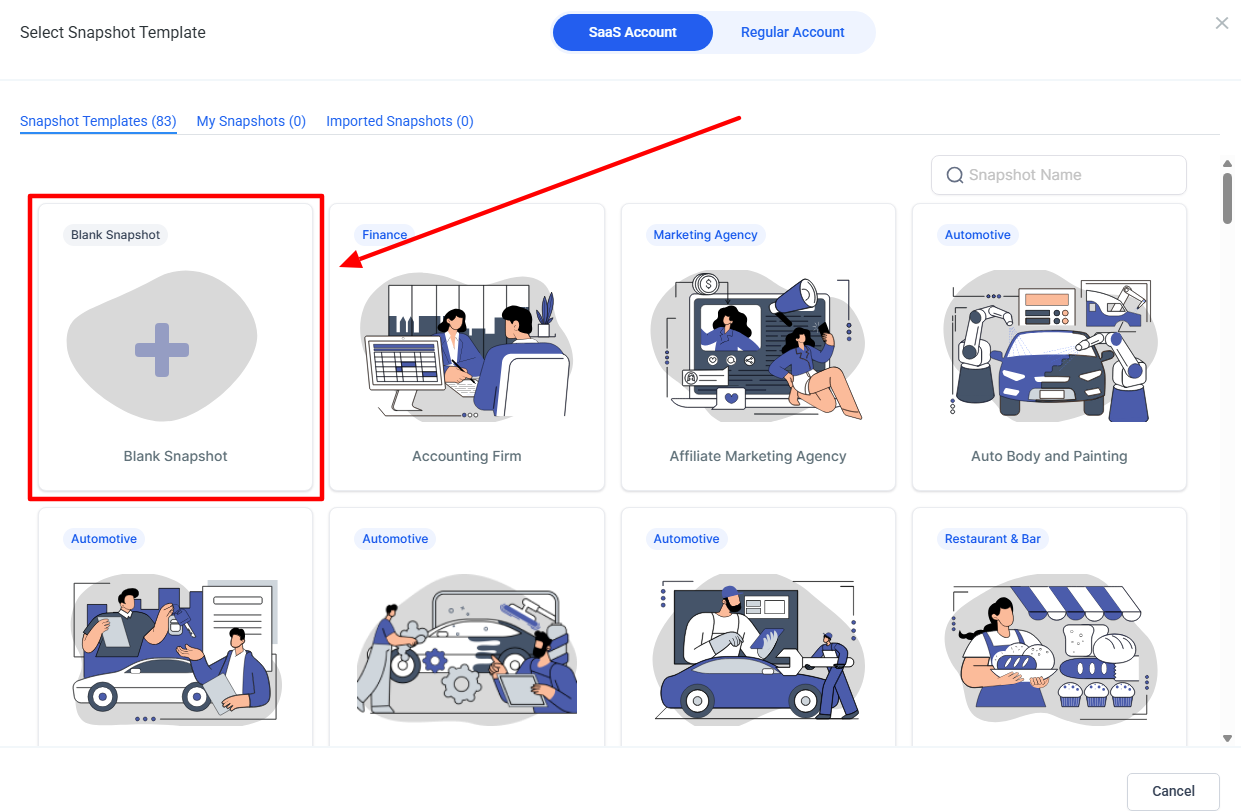
Next, if you want to add one, select a snapshot to import. These templates preload the sub-account with assets, such as funnels, pipelines, and workflows, tailored to a specific industry.
If you don’t want to load a snapshot, select the blank option.
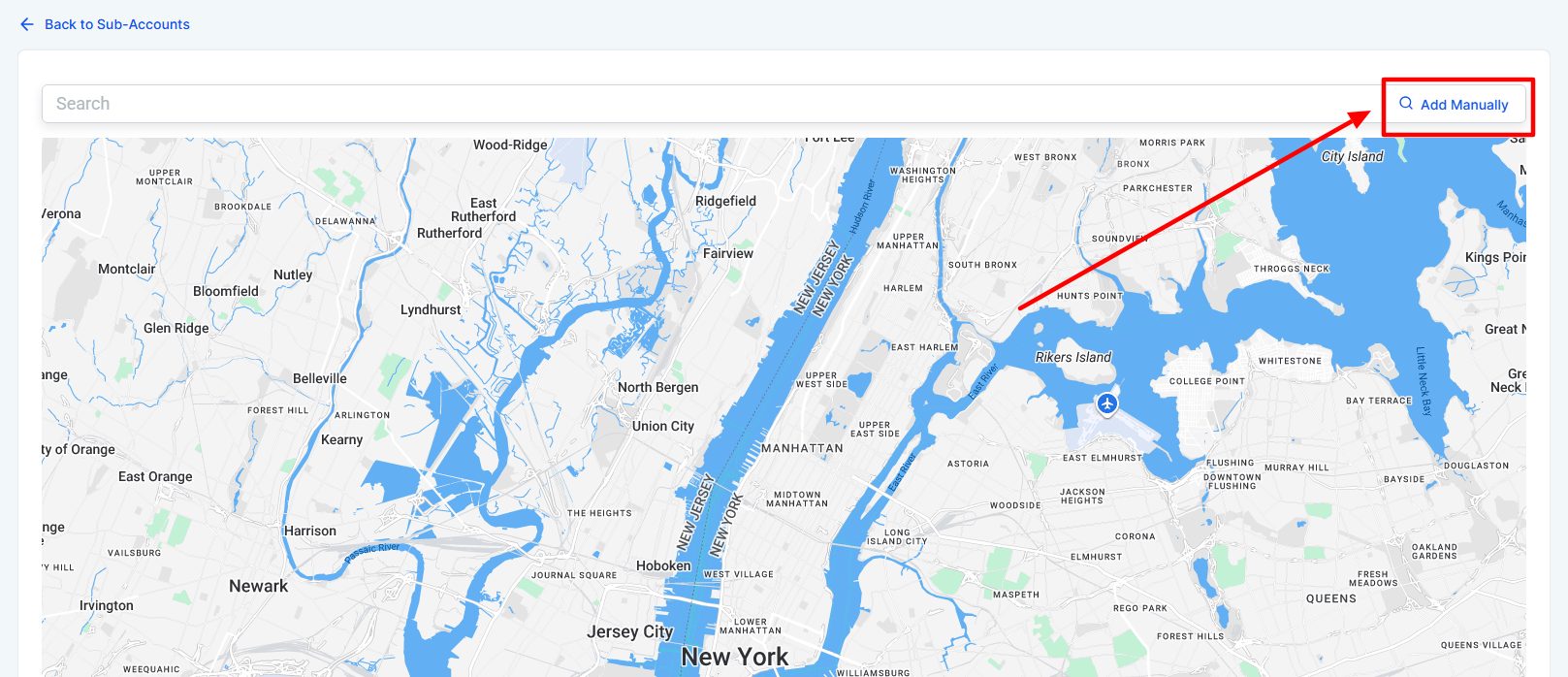
Now, use the address finder to input the address of your or your client’s business. I actually find it easier to click the Add Manually button, so do this if the system can’t find the address.
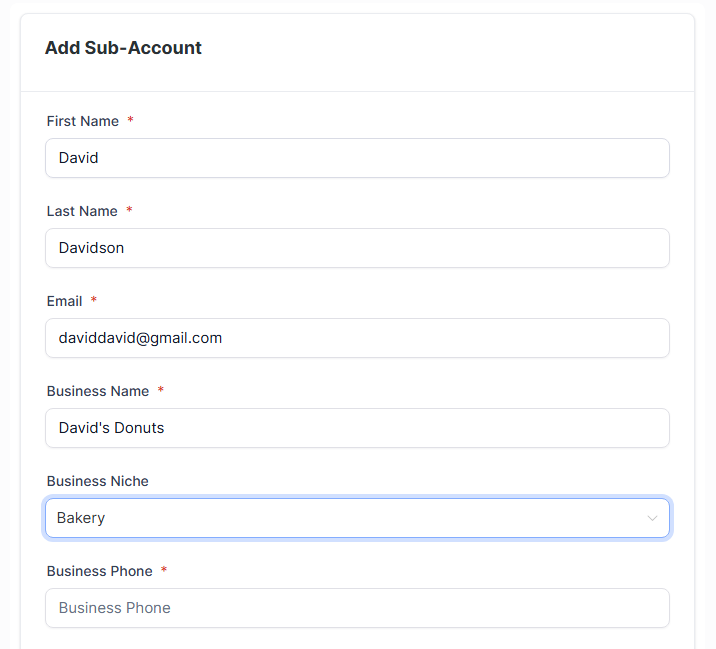
Next, add all your or your client’s business information.
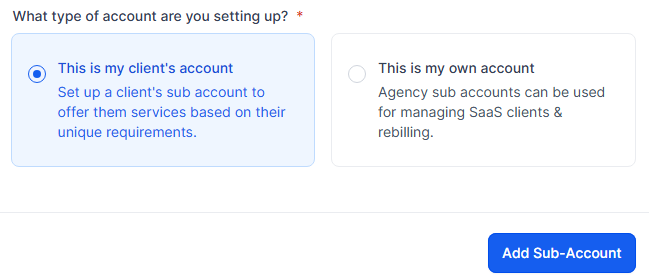
Lastly, select the correct box based on whether you’re setting up a sub-account for yourself or a client, and click Add Sub-Account.
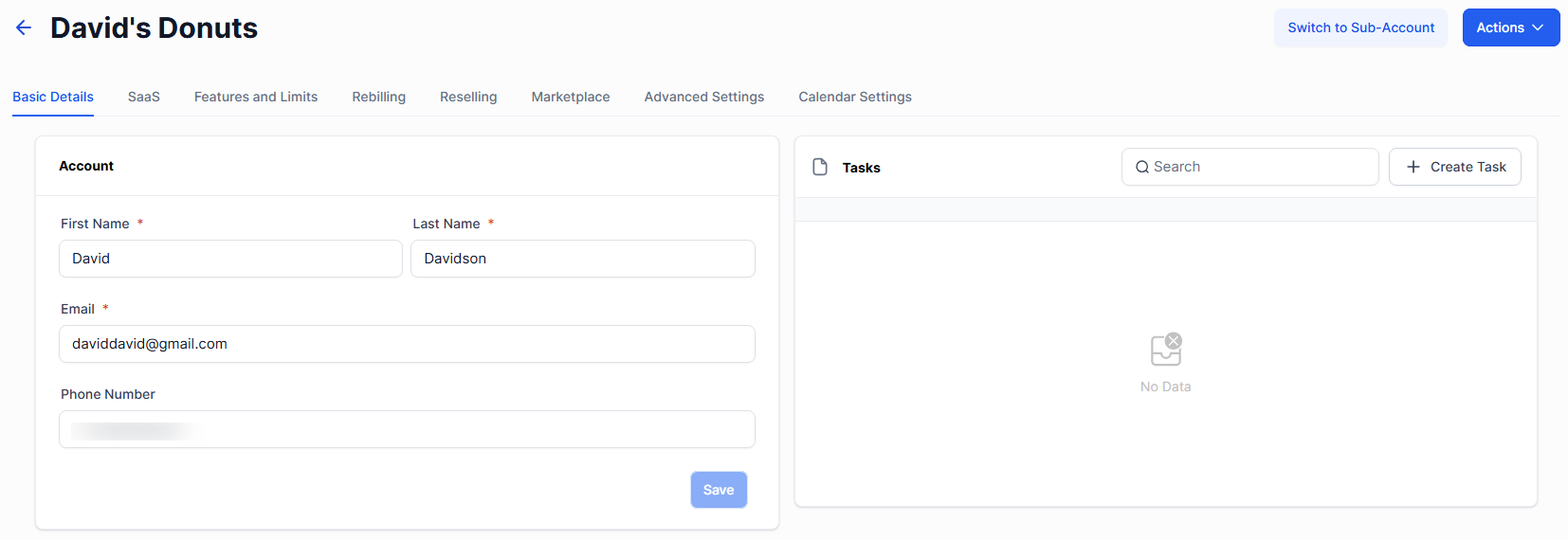
The sub-account is now ready, and you can start using it.
8 Features to Level-Up Sub-Account Management
Now you know the basics, here are some extra features to make your life a whole lot easier!
1. Create a Sub-Account Using a Snapshot
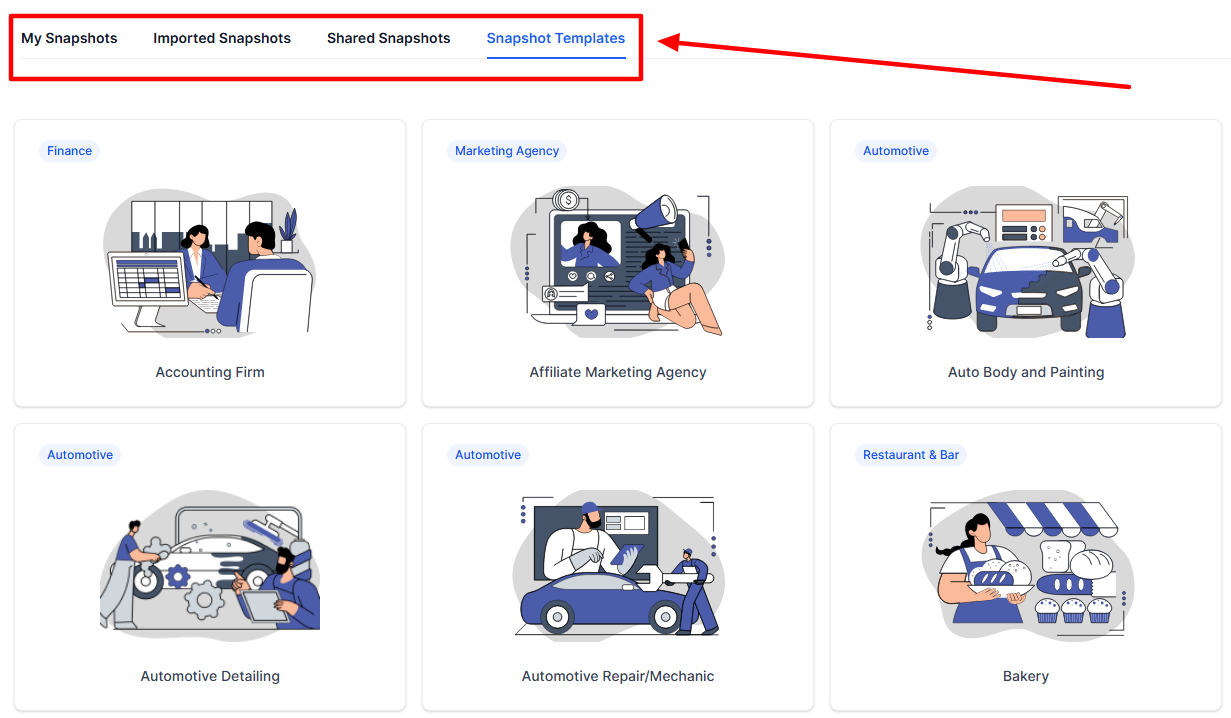
I wanted to expand a bit on the whole snapshot thing because it’s not just GoHighLevel’s snapshots that you can use.
If you specialize in a specific niche, you can create your own snapshots containing bespoke assets that you can save and use for each of your clients. Or, you can purchase snapshots from third parties or even have an expert build one for you.
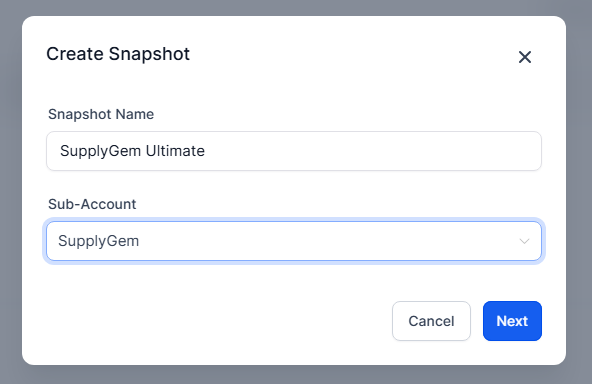
These are super useful and a massive timesaver since they mean you’re not starting with a blank sub-account each time.
You simply load up the snapshot, and you’ve got a bunch of assets ready to go. All you have to do is tweak them according to the new client’s details, and you’re set.
2. Set Granular User Permissions
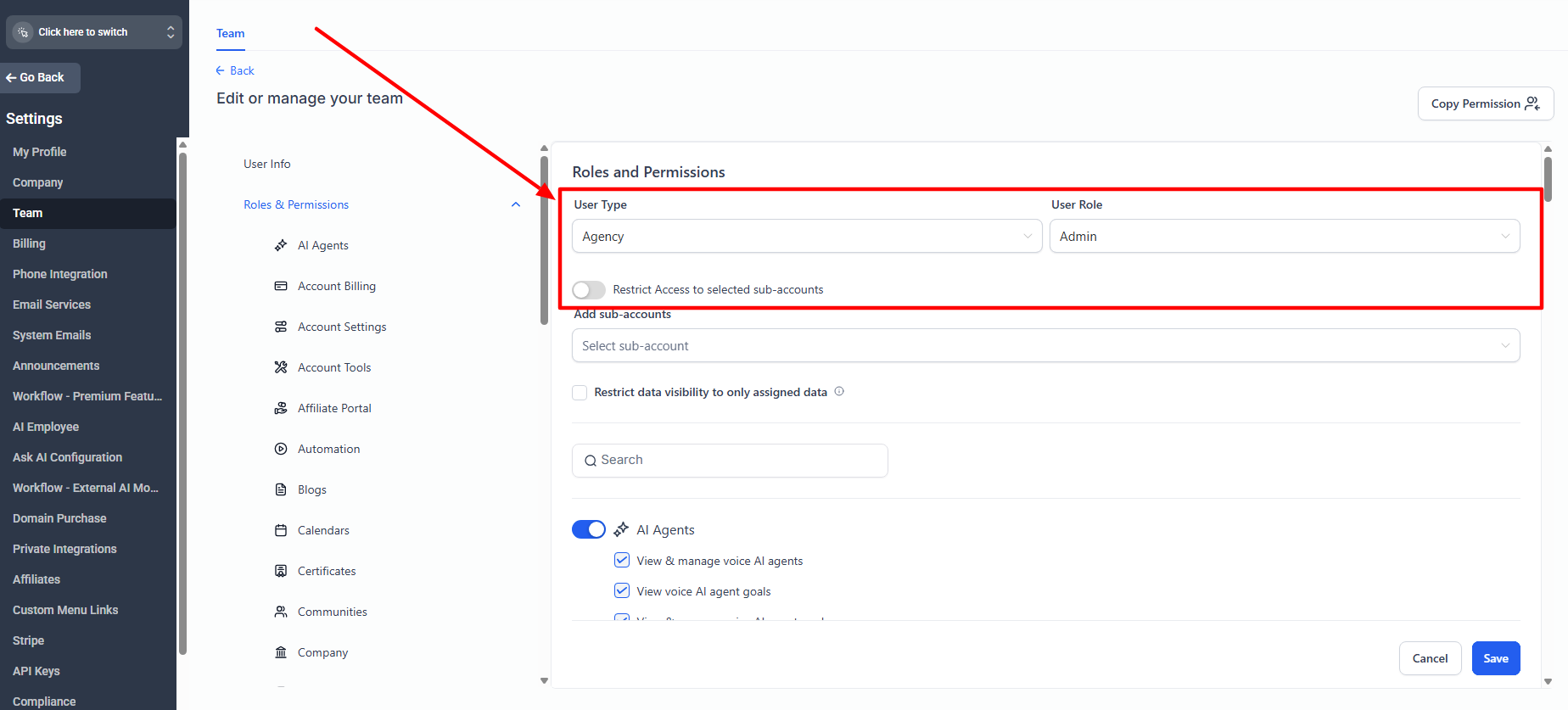
In your agency account, you have the ability to add team members. These can include individuals working in your agency, freelancers you collaborate with, or the client themselves.
Really, anyone can have access if you allow it.
The great thing is that you can control precisely what each individual has access to:
- Admins have access to backend operations.
- Users have more limited permissions and can’t access backend operations.
You can determine exactly which sub-accounts individuals have access to and which tools and features they can access.
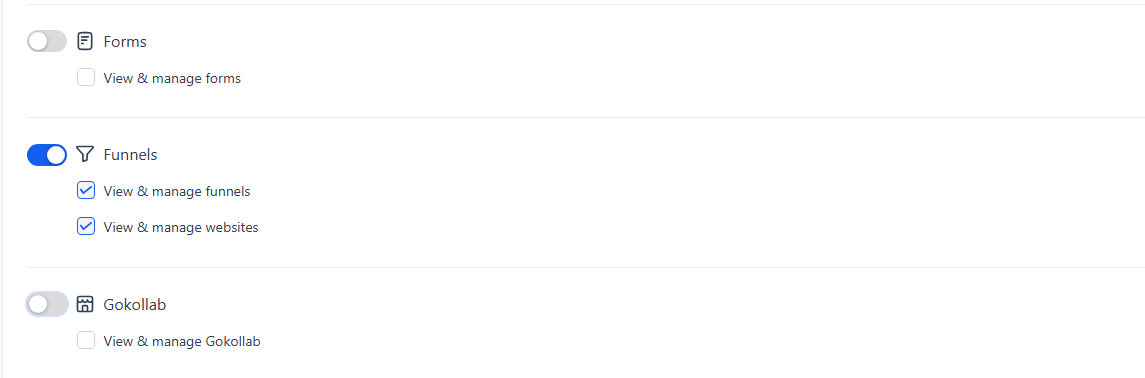
For example, if you have a freelancer performing web design for one of your clients, you’d assign them as a user to the relevant sub-account. Then, you’d switch off access to everything except the ability to view and manage websites and funnels.
This gives users access only to what they need, keeping the rest of the data secure.
3. Transfer Sub-Accounts
It’s entirely possible to transfer a sub-account from one agency to another. So, if you win a client who is already assigned to another agency, or vice versa, their account data can be migrated.
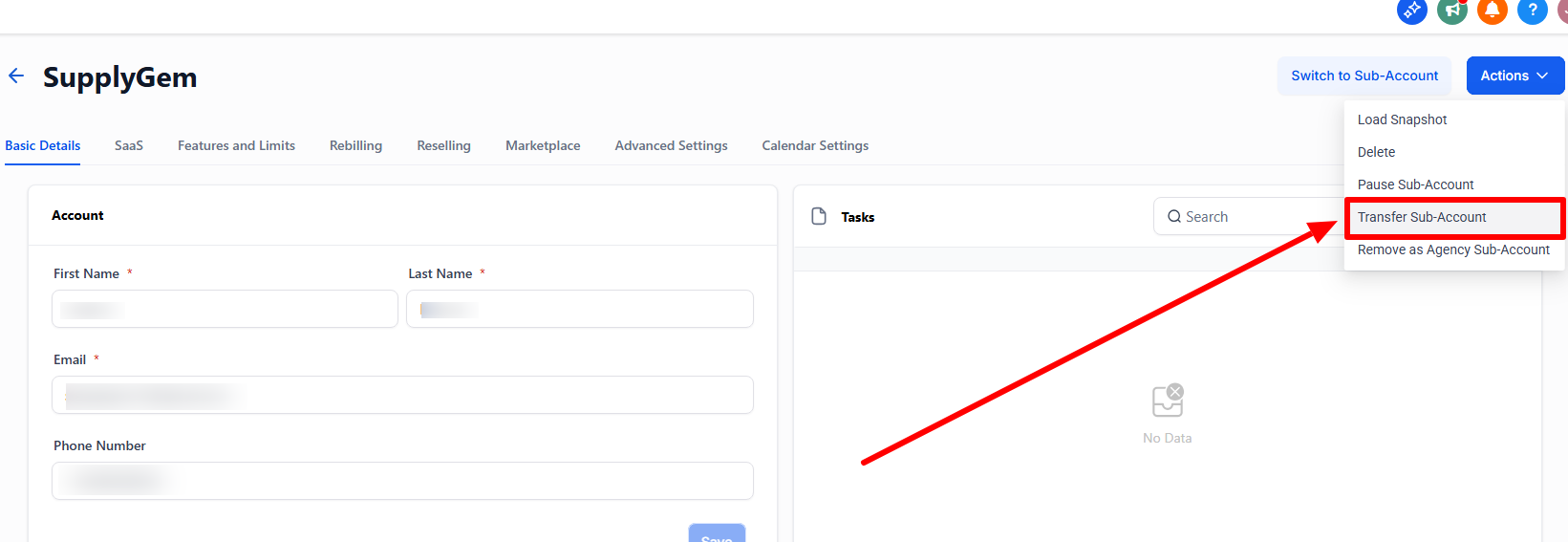
This carries over all the data and assets created in the original sub-account, so they’re ready and available in the new one.
Of course, this only works between GoHighLevel users. So, if the client is with an agency that uses a different platform, you won’t be able to transfer the data.
4. Pause and Resume Sub-Accounts
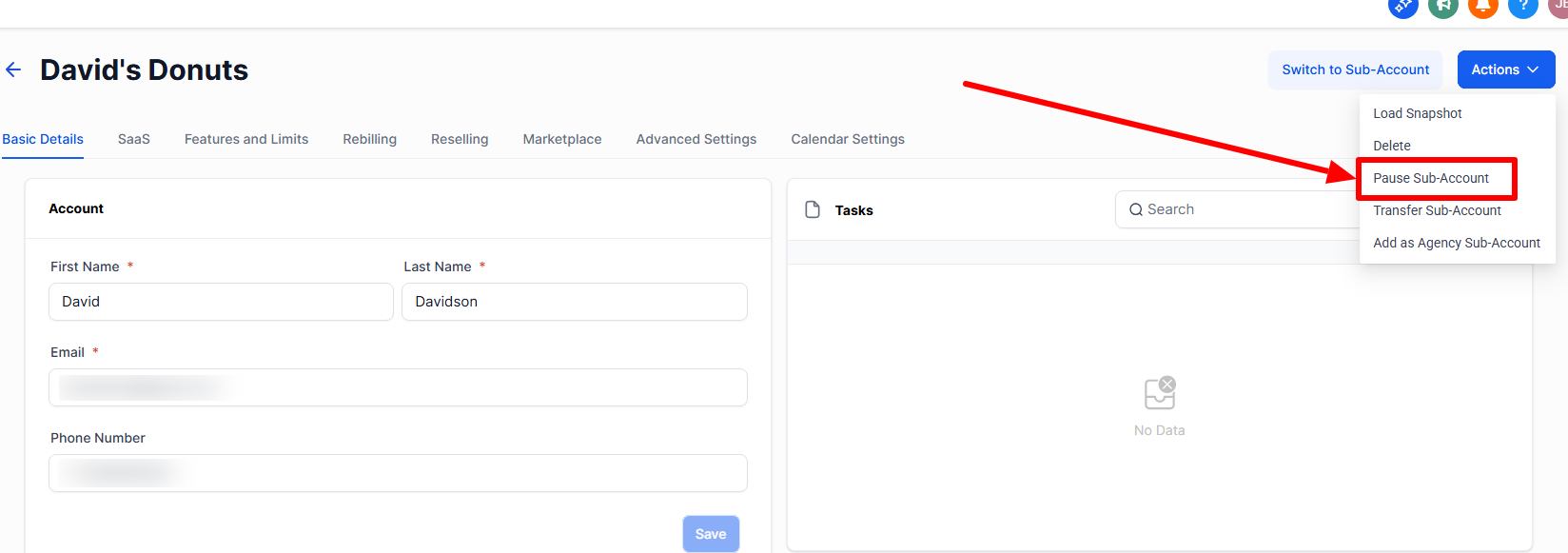
You may need to pause a sub-account if the client failed to pay their monthly fee or if they want to take a break from your services (but plan to return at some point).
Pausing a sub-account deactivates all the workflows, pages, campaigns, and so on but ensures the data and assets are retained. It also prevents non-admin users from accessing the account until it is resumed.
- If it’s a SaaS sub-account, it automatically pauses when the customer fails to pay and automatically resumes after a successful payment.
- Standard sub-accounts must be paused and resumed manually, which can be done on the sub-account management screen.
5. Copy Contacts from One Sub-Account to Another
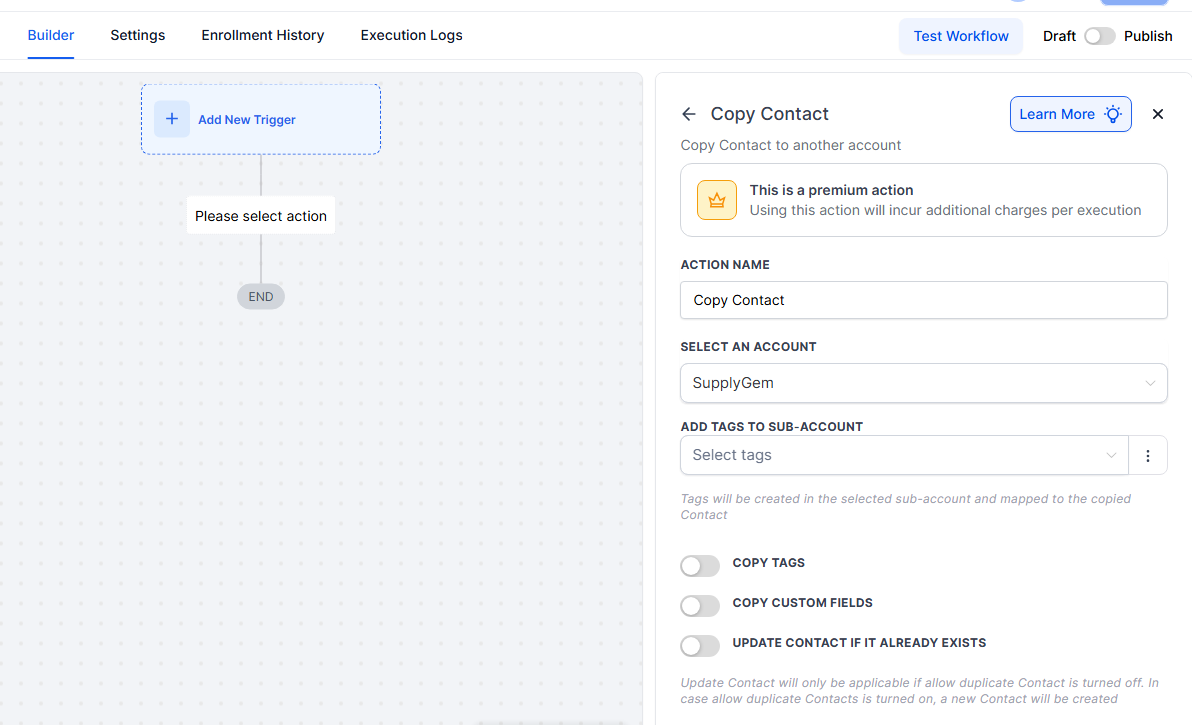
You may need to copy contacts from one sub-account to another at some point. For example, you may need to do this if you have a client with multiple business locations and use a sub-account for each one.
To do this, you need to set up a workflow in the Automations tool. However, the copy contact falls under Premium Actions and Triggers, which incur additional costs (though you get 100 executions for free).
Once you’ve done this, the system will automatically pull contacts between sub-accounts, including any tags and custom fields you may have applied.
6. Copy Workflows Over (Without Using a Snapshot)
Another thing you can copy to other sub-accounts is your automated workflows. And you don’t have to create a snapshot to do it (although a snapshot is certainly one way to make it happen).
My advice is this: If you have multiple asset types to copy over, create a snapshot. But if you only want to copy over workflows, do it this way.
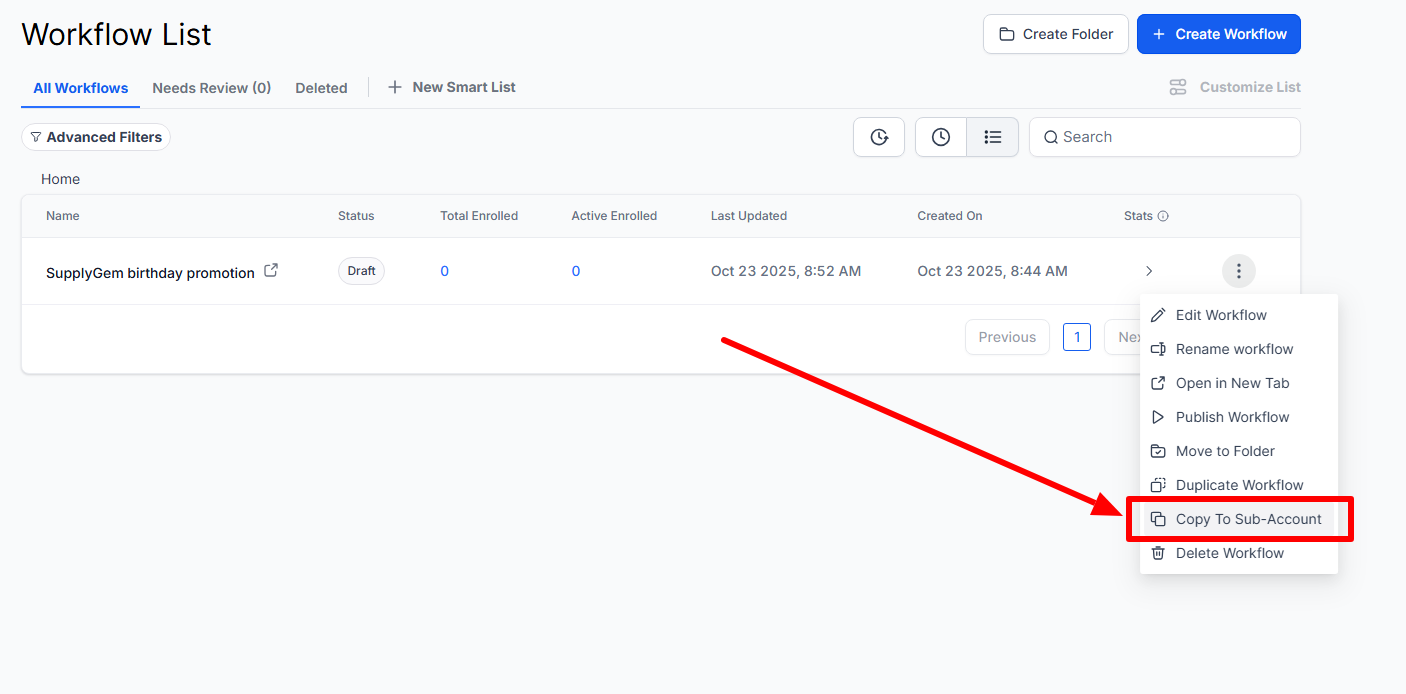
It’s as easy as selecting the relevant workflow from the list, clicking the three dots to the right of its title, and selecting Copy to Sub-Account. Then, you just select which sub-account to send it to, and you’re done.
7. Share a Prospecting Subscription with a Sub-Account
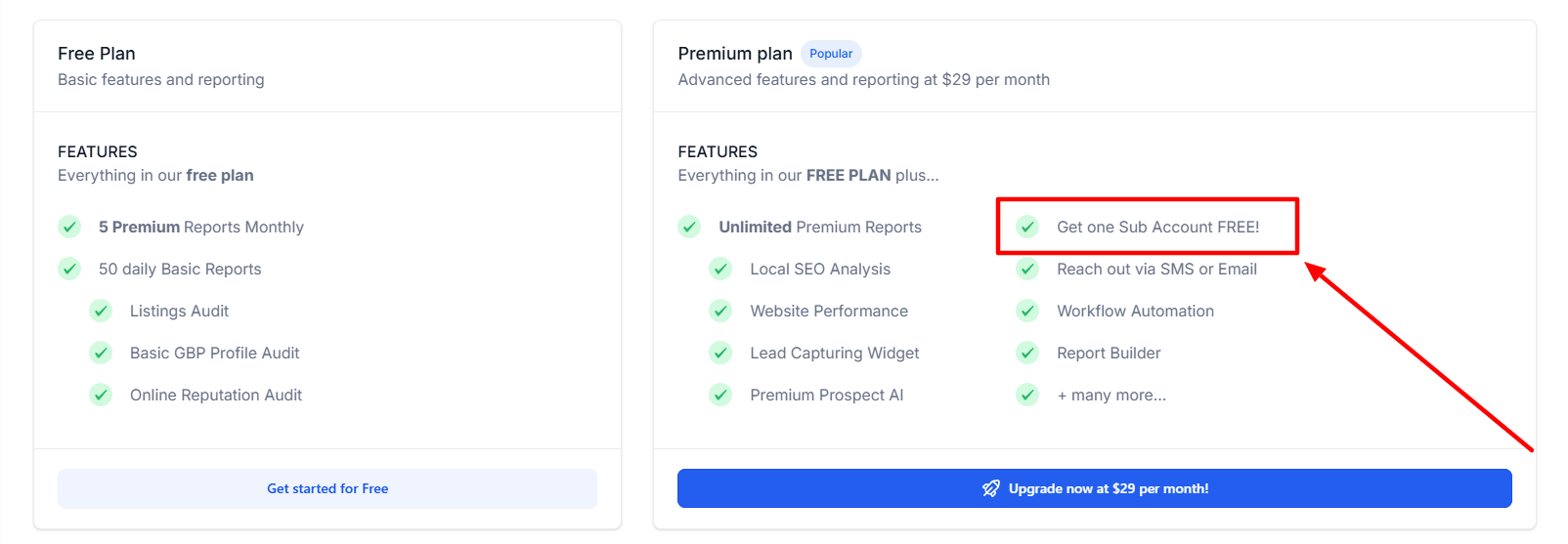
The agency account’s prospecting tool helps you find potential clients by area and industry.
However, it’s actually possible to share this feature with one sub-account.
Doing so simplifies user access and eliminates the need to maintain two separate subscriptions for the same tool.
This option is only available on the paid version of the prospecting tool, which costs $29 per month. Once you subscribe, you pick which sub-account to share with and link it to the plan.
8. Switch a Standard Sub-Account to a SaaS Sub-Account
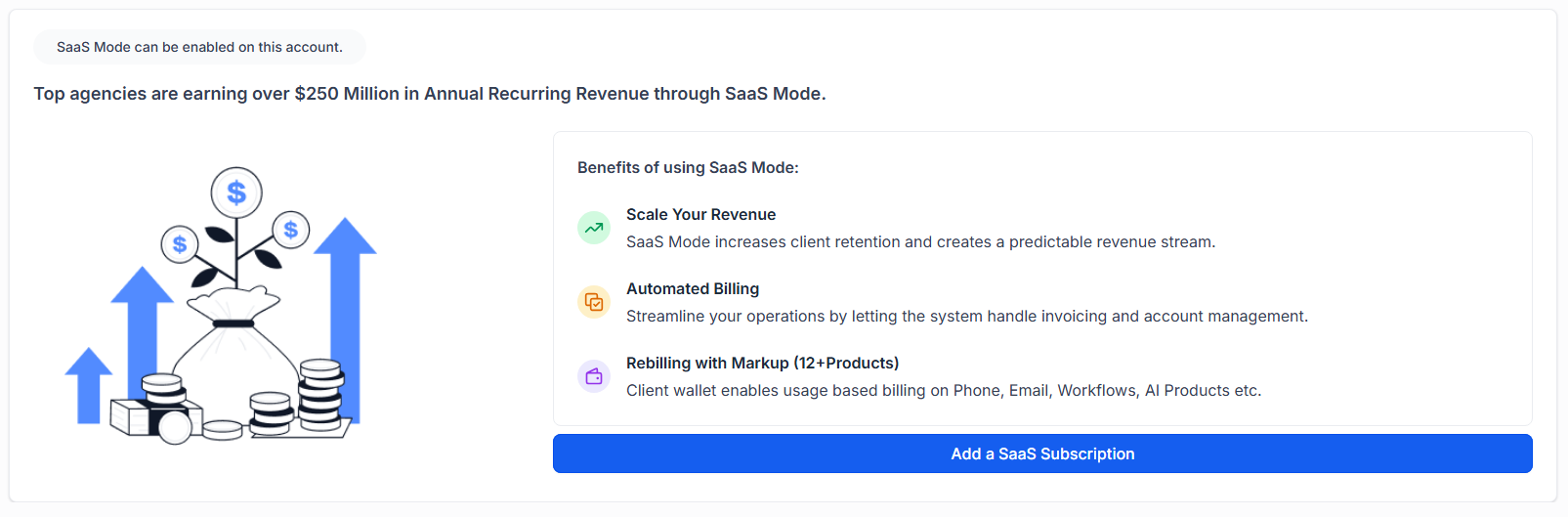
This is useful if you have existing clients and want to set up as a SaaS and move them over.
Rather than having to shift them into a new sub-account, you can simply convert the existing one into a SaaS sub-account.
Now, there is something important to keep in mind here. You either have to align your SaaS plan with your existing client’s feature set or make them understand that moving to the plan may mean some features are restricted.
For example, if you have a basic SaaS plan (with limited features) and a premium SaaS plan (with all features), you’ll need to make sure the client chooses the right one to move over to.
Frequently Asked Questions
Do I Need a GoHighLevel Sub-Account If I Have an Agency Account?
Yes, you’ll need a sub-account in addition to your agency account. When you sign up for GoHighLevel, an agency sub-account is automatically created for you, allowing you to create marketing campaigns, perform CRM, etc.
How Many GoHighLevel Sub-Accounts Can I Have?
It depends on your plan. The GoHighLevel Starter plan gives you three sub-accounts, while the Unlimited and Pro plans let you set up unlimited sub-accounts.